
Everyday Tech
Password Managers: Setup Guide for People Who've Been Putting It Off
What changed in this update: FAQs and an update date were added. This is a guide article with no product picks, so no pick cards or comparison table were added.
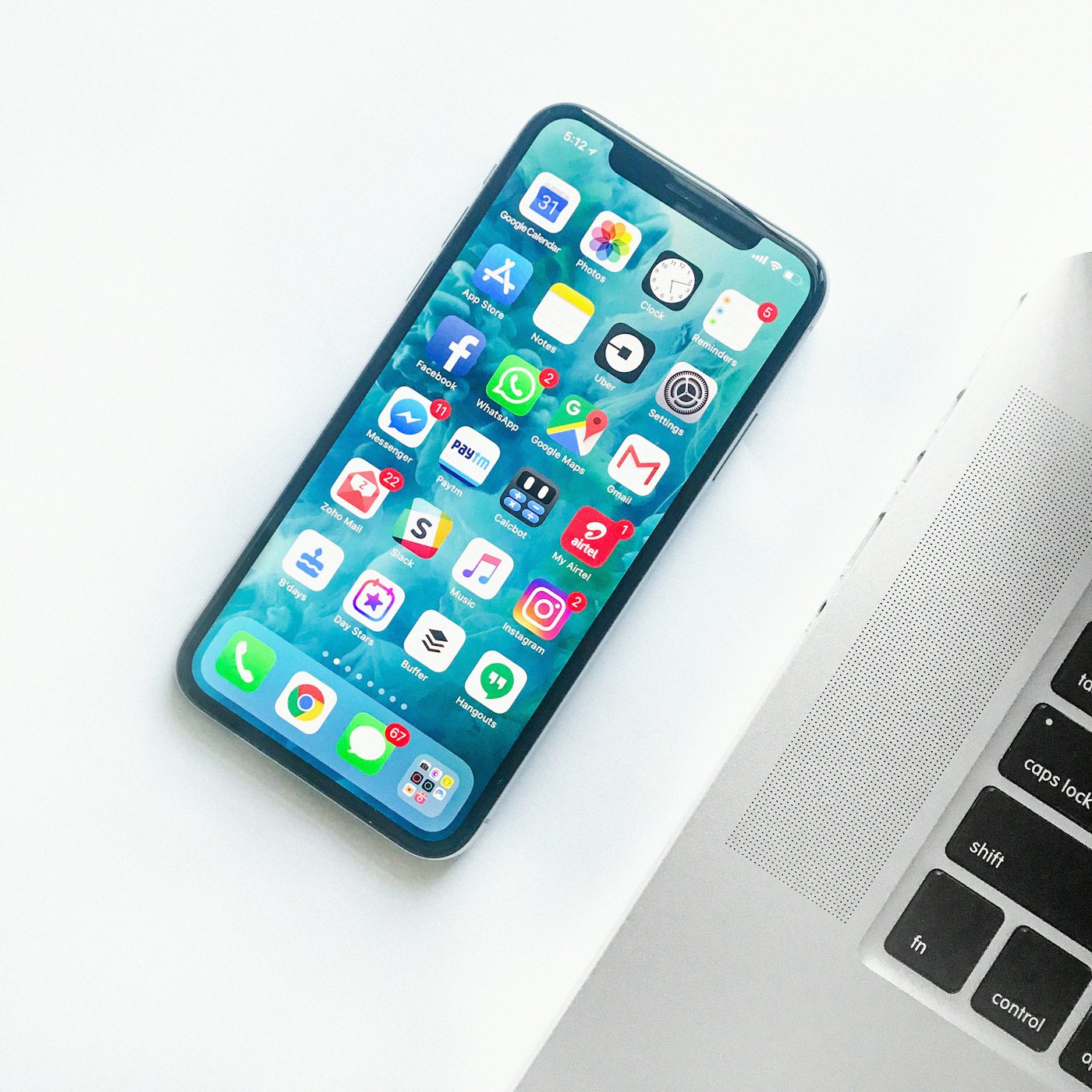
Yes, you need one. No, it's not complicated. Here's the 20-minute setup that fixes your password chaos for good.
I used the same three passwords for everything until 2023. Then a forum I hadn't visited in years got breached, and I spent a weekend changing passwords on 40+ sites. That's when I finally set up a password manager. It took 20 minutes. I wish I'd done it five years earlier.
If you're still reusing passwords or keeping them in a notes app, this guide is for you. No jargon, no fear-mongering — just the practical steps.
Why a password manager (the non-scary version)
It's not about hackers in hoodies. It's about breaches you can't control. When a website you use gets hacked, attackers try your email+password combo on banks, email, and shopping sites. A password manager gives every site a unique, random password, so one breach doesn't cascade.
It also just makes life easier. Autofill on your phone, sync across devices, no more "forgot password" loops. I haven't typed a password manually in months.
My setup: what I actually use
I've tried Bitwarden, 1Password, and Apple's built-in keychain. Here's my honest take after daily use:
- Bitwarden (free): What I recommend to friends. Open source, works everywhere, the free tier is genuinely enough. I used it for a year with zero complaints.
- 1Password ($36/year): What I use now. Nicer interface, better family sharing, travel mode for border crossings. Worth it if you share passwords with a partner.
- Apple Keychain / Google Password Manager (free): Fine if you're all-in on one ecosystem, but painful if you mix iPhone + Windows or Android + Mac.
The 20-minute setup
Minutes 0-5: Install Bitwarden (or your pick) on your phone and computer. Create your account with a strong master password — this is the ONE password you need to remember. Write it on paper and store it somewhere safe.
Minutes 5-15: Import existing passwords. Bitwarden can import from Chrome, Safari, or a CSV. Then run the "password health" report — it'll flag every reused or weak password.
Minutes 15-20: Change your top 5 critical passwords (email, bank, primary shopping, social media, cloud storage). Use the generator — 20 characters, random. You never need to remember them.
Pros and cons
- Pro: One master password replaces dozens. Autofill is faster than typing.
- Pro: Breach alerts tell you when a site you use is compromised.
- Con: If you forget the master password, you're locked out. Write it down.
- Con: Initial setup takes 20 minutes of focused time. After that, it's invisible.
What about passkeys?
Passkeys (the "sign in with fingerprint" thing) are the future, and good password managers now store them too. But passwords aren't going away yet — maybe 30% of sites I use support passkeys. Set up the password manager now; it'll handle passkeys when they're ready.
This pairs well with good phone habits — a phone that lasts all day means your authenticator app is always available. And if you're setting up a new device, check my phone upgrade guide first.
Frequently asked questions
Why do I need a password manager?
It is not about hackers in hoodies — it is about breaches you cannot control. When a site you use gets hacked, attackers try your email and password combo on banks, email, and shopping sites. A manager gives every site a unique, random password, so one breach does not cascade. Autofill is also faster than typing.
Which password manager should a beginner pick?
Bitwarden (free) is the recommendation to friends: open source, works everywhere, and the free tier is genuinely enough. 1Password ($36/year) is nicer, with better family sharing and travel mode for border crossings. Apple Keychain or Google Password Manager are fine only if you are all-in on one ecosystem.
How long does setup actually take?
Twenty minutes. Minutes 0-5: install on phone and computer, create the account with a strong master password, and write that password on paper stored somewhere safe. Minutes 5-15: import existing passwords and run the password health report. Minutes 15-20: change your top 5 critical passwords (email, bank, primary shopping, social media, cloud storage) with the generator — 20 characters, random.
What if I forget the master password?
You are locked out — that is the one real risk. Write it on paper and store it somewhere safe. And about passkeys: they are the future, and good managers store them too, but only about 30% of sites support them yet. Set up the password manager now; it will handle passkeys when they are ready.
Affiliate disclosure: some product links may earn ElectroVibe Lab a commission at no extra cost to you. As an Amazon Associate, we earn from qualifying purchases.